Most AI generation tools give you a text box and a generate button. That’s it. The experience is linear: one prompt, one output, start over. For casual use, that’s fine. But for anyone doing real creative work—producing image sets, iterating on concepts, or building toward a finished video—a single prompt box creates more friction than it removes.
An AI Creative Canvas is a different approach entirely. It gives you a spatial, visual workspace where generation isn’t a one-shot event but an ongoing, connected process. Everything you create lives on the canvas, every step links to the next, and the whole project stays in one place from first idea to final export.
What Makes a Canvas “Creative”
A Workspace With No Fixed Structure
The word canvas here is deliberate. Like a physical canvas, it’s an open, unbounded surface—no fixed grid, no forced structure, no linear sequence. You decide where things go and how they relate to each other. Nothing is hidden in the menu. Nothing requires you to follow a preset order.
Nodes and Connections Replace the Prompt Box
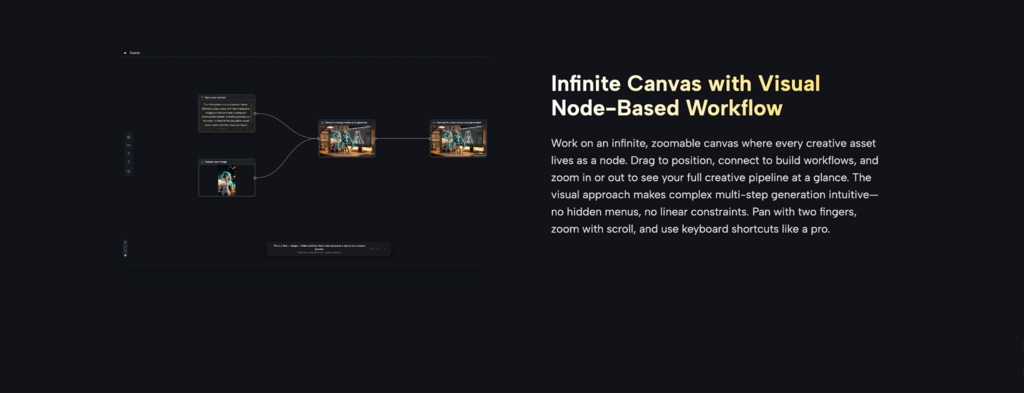
An AI Creative Canvas applies spatial freedom to AI generation. You place generation nodes—text prompts, image outputs, video outputs, uploaded reference assets—wherever makes sense on the canvas, then draw connections between them to define how outputs flow from one step to the next. The result is a live visual map of your creative process: every node, every connection, every output visible at once and editable at any point.
Your Process Becomes Something You Can See
This is meaningfully different from a tool that shows you a history feed or a gallery of past generations. On a canvas, your process has spatial structure. You can group related experiments, lay out multiple directions side by side, and trace exactly how any given output came to exist. The pipeline isn’t hidden-it’s the thing you’re looking at.
How an AI Creative Canvas Works in Practice
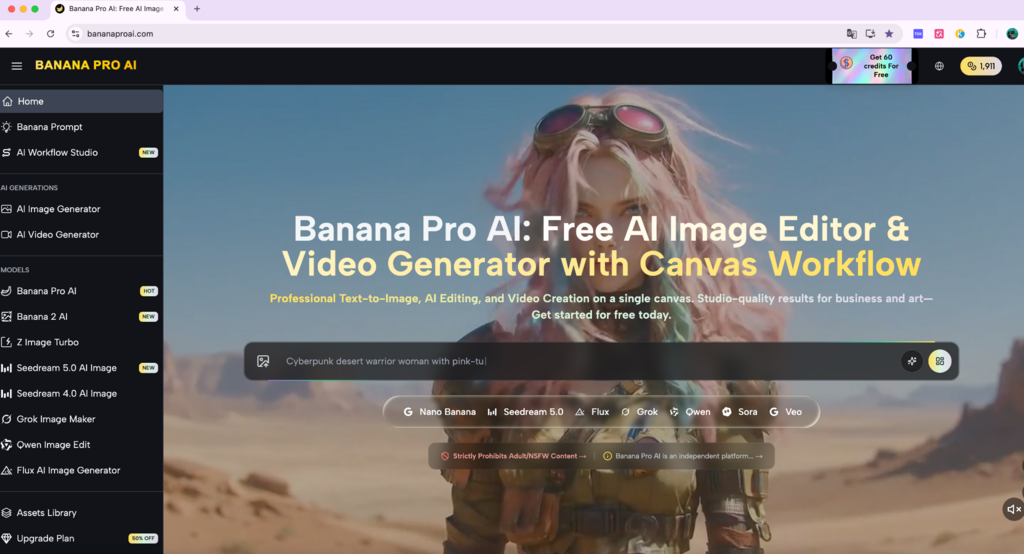
Banana Pro AI Studio is a free AI creative canvas built around this model. Here’s how a typical session unfolds.
Step 1: Open the Canvas
Create a new project and you’re dropped straight into an infinite, zoomable workspace. No setup steps, no configuration required. Everything auto-saves in real time—close the tab and reopen it tomorrow and your canvas is exactly as you left it, with every node, connection, and output preserved.
Step 2: Add Nodes
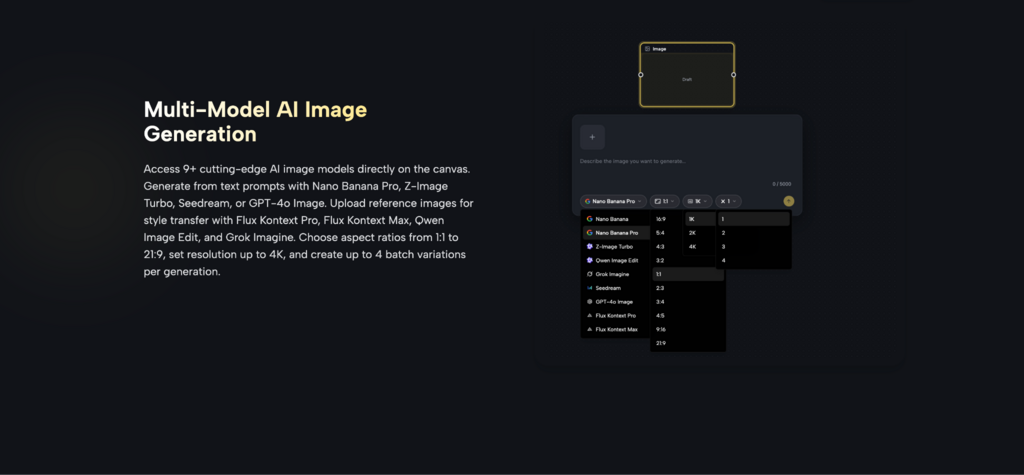
Four node types are available: Text (for prompts), Image (for AI image generation), Video (for AI video generation), and Upload (for bringing in your own reference assets). Add a node by clicking from the sidebar or dragging directly onto the canvas. Image nodes support 9+ AI models with aspect ratios from 1:1 to 21:9 and resolution up to 4K. Video nodes connect to Veo 3 and Veo 3.1. Position each node wherever feels right—there’s no required layout.
Step 3: Connect Nodes Into a Pipeline
Drag from one node’s output handle to another node’s input handle to establish a dependency. A Text node’s prompt feeds into an Image node. An Image node’s output becomes the reference frame for a Video node. The canvas visualizes these connections as visible lines between nodes, so the pipeline is always readable at a glance. Connections are validated automatically—you can’t link node types that aren’t compatible with each other.
Step 4: Generate, Preview, and Iterate
Hit Generate on any node. Output appears directly on the canvas, attached to the node that created it. If the result isn’t right, adjust the prompt, switch to a different AI model from the node’s dropdown, or use “Based on This” to spawn a new node derived from the current output while keeping the original intact. Batch generation produces up to four variations at once—all visible side by side on the canvas for immediate comparison.
Step 5: Export
Every generation is logged in the project’s History panel with timestamps and previews. Export any output at full resolution, watermark-free, at any point in the session. No separate export queues, no extra steps.
What Sets AI creative canvas Apart From Standard AI Tools
The Workspace Reflects Your Thinking
On a linear tool, your creative process is invisible—there’s just a sequence of outputs with no spatial or structural relationship between them. On an AI creative canvas, the layout of your nodes and connections is a direct representation of how you’re thinking about the project. Changing direction means adding a branch, not starting over.
Multiple AI Models in One Place
Banana Pro AI Studio gives you access to 9+ image models—including GPT-4o Image, Flux Kontext Pro, Seedream, Z-Image Turbo, Qwen Image Edit, and Grok Imagine—plus Veo 3 and Veo 3.1 for video. Each node has its own model selector, so different steps in the same pipeline can run different AI engines. Use a fast model for early exploration, a higher-quality model for final refinement, and a video model for the last step—all without leaving the canvas or re-uploading anything.
Iteration Doesn’t Break the Pipeline
On a standard tool, changing something upstream means manually redoing everything downstream. On a canvas, you adjust one node and regenerate only that step. Everything else stays connected and intact. The downstream nodes can be regenerated with the updated input whenever you’re ready, without losing any prior work.
Nothing Disappears
Auto-save runs continuously. The History panel retains every generation ever produced in a project, with timestamps and previews. Undo/redo covers all canvas actions. An earlier concept you set aside three sessions ago is still there, retrievable in seconds.
Who Benefits Most From AI creative canvas
An AI creative canvas is most useful when your work involves more than a single generation step—which covers most professional creative workflows.
Designers who produce multiple format variations of the same concept, or who need to maintain visual consistency across a batch of assets, benefit from having all variations on the same canvas with a shared reference node anchoring the style.
Content creators producing short-form video can run a full text-to-image-to-video pipeline in a single session. Write the concept, generate the frame, produce the video—without switching tools or manually transferring files between steps.
Marketers running A/B creative tests can build a workflow that generates multiple ad variations from a single prompt structure, with different models or prompt tweaks per node. Compare results directly on the canvas before deciding what to move forward with.
Anyone exploring a new visual direction benefits from the canvas’s spatial layout: lay out multiple approaches side by side, develop the promising ones further, and have the full visual context of the exploration available at a glance.
Getting Started
Banana Pro AI Studio is free, with no credit card required. Free accounts include full canvas access, all four node types, 9+ image models, Veo 3 and Veo 3.1 video generation, unlimited projects with auto-save, and high-resolution watermark-free exports.
The built-in beginner’s guide walks through a live Text → Image → Video pipeline directly on the interactive canvas. If you’ve never worked with a node-based workflow before, it’s the clearest way to understand how the pieces connect.
An AI creative canvas doesn’t just change the tool you use—it changes the shape of the creative process itself. The pipeline becomes visible. The work accumulates instead of disappearing. And iteration becomes something you build on rather than something that resets everything.