
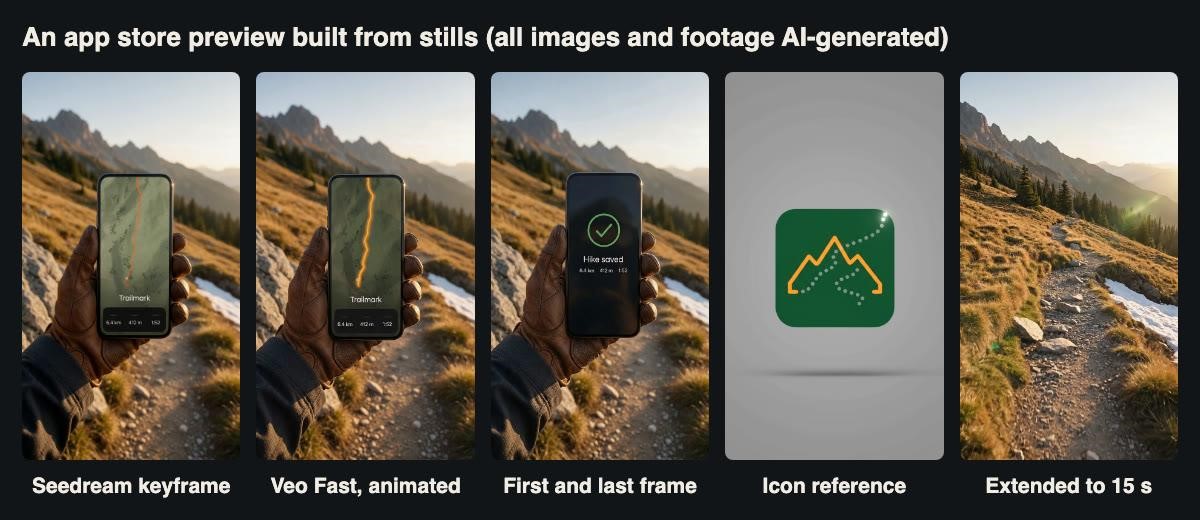
The keyframe and four of the clips made from it. The app, the hiker and the footage are all generated for this test.
For a small app team, the preview video on a store listing is often the last thing made and the first thing a visitor watches. Screen recordings are honest but flat. A proper shoot with a phone in a real hand in a real place looks better, but it costs a day nobody has. Video models look like a way to get the second kind of footage for the price of the first.
The catch is that an app preview is mostly a picture of a screen. If the generated phone shows a menu your app does not have, or a number that changes halfway through, the preview misrepresents the product. Store reviewers and users can both notice that. So we measured the thing that matters most: what happens to the interface on the phone when a model animates it.
Our test app is fictional. Trailmark is a hiking tracker from an imaginary two-person studio, and its key screen shows a topographic map, an orange route and three stats: 6.4 km, 412 m and 1:52. We made the keyframes with ByteDance’s Seedream 5.0 Pro (seedream-5-0-pro) and animated them with Google’s Veo 3.1 (veo3.1-fast, plus one run each on veo3.1-lite and veo3.1-quality). Nine tests, five stills and eight clips cost $1.75 in generation fees.
A caveat before the results. The keyframes are generated stand-ins for real screenshots, which is why the interface renders so cleanly. With your own app you would build the keyframe from a real screenshot, and how faithfully a real interface survives may differ from what we saw. Each result is also a single generation, so read the patterns as leads rather than rates.
The pipeline
Both models use the same asynchronous pattern. You post a job, receive a task ID, poll the task, and download the result from a link that expires after 72 hours. The image model returns a PNG or JPEG. The video model’s Ext variants always return an 8-second MP4 in 9:16 or 16:9, at 720p, 1080p or 4K. To animate a still you pass its URL in image_urls and set generation_type to frame. With one image it becomes the first frame. With two, the second becomes the last frame. The snippet below shows the shape of the two calls with a placeholder host. It is a simplification, not the exact runner we used, which also logged every task ID to disk before polling so that a network error could never cause a paid job to be sent twice.
import os, time, requests
BASE = os.environ[“GEN_API_BASE”] # placeholder host
H = {“Authorization”: “Bearer ” + os.environ[“GEN_API_KEY”]}
def run(path, job):
r = requests.post(f”{BASE}{path}”, headers=H, json=job, timeout=60)
task_id = r.json()[“data”][0][“task_id”]
while True:
t = requests.get(f”{BASE}/v1/tasks/{task_id}”, headers=H, timeout=30).json()[“data”]
if t[“status”] in (“completed”, “failed”, “cancelled”):
return t
time.sleep(8)
# 1. the keyframe
still = run(“/v1/images/generations”, {
“model”: “seedream-5-0-pro”, “prompt”: KEYFRAME_PROMPT,
“size”: “9:16”, “resolution”: “1.5K”, “output_format”: “png”})
still_url = still[“result”][“images”][0][“url”][0]
# 2. animate it, keyframe as first frame
clip = run(“/v1/videos/generations”, {
“model”: “veo3.1-fast”, “prompt”: MOTION_PROMPT, “duration”: 8,
“aspect_ratio”: “9:16”, “resolution”: “720p”,
“generation_type”: “frame”, “image_urls”: [still_url]})
To check the interface we did not rely on our eyes. For each clip we sampled 24 evenly spaced frames and ran them through the macOS Vision text recogniser, then counted how many frames contained each of the four strings that should be on the screen: “Trailmark”, “6.4 km”, “412 m” and “1:52”.
Test 1: the keyframe at 1.5K and 2K
The keyframe prompt described the shot an outdoor app might use:
Vertical app store promo keyframe: a hand holds a modern smartphone in front of a softly blurred alpine hiking trail at golden hour. The phone screen shows a hiking app called “Trailmark”: a topographic map with an orange route line, and below it three stats in white text on a dark panel: “6.4 km”, “412 m”, “1:52”. Clean, sharp interface, realistic phone and hand, natural light, no other text.
At 1.5K the model returned a 1152 by 2048 PNG in 73 seconds for $0.026. That is the same price as 1K, so there is no reason to order 1K for this kind of work. At 2K it returned 1440 by 2560 in 71 seconds for $0.053. The text recogniser read the app name and all three values correctly in both images.
The two images disagreed about everything else. The 1.5K version shows a gloved hand and leaves three small grey bars where labels might go, so the values have no captions. The 2K version shows a bare hand, a different mountain and a different map, and it adds the labels “Distance”, “Elevation Gain” and “Duration”. The prompt said “no other text”. Those labels are sensible, but they are invented copy that nobody on the team wrote.
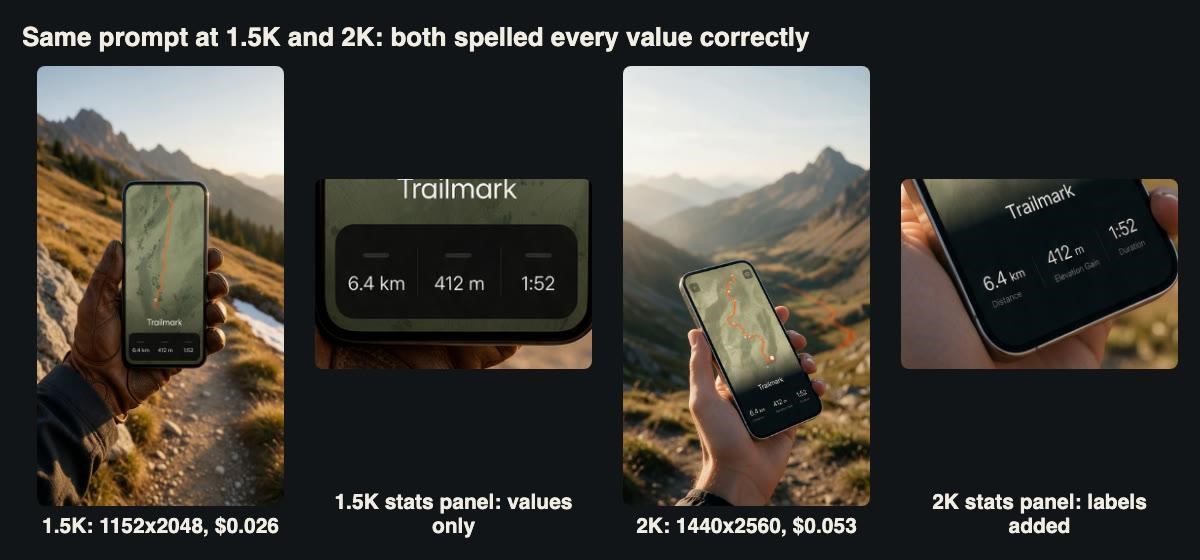
Both resolutions spelled every requested string correctly. The 2K image added three labels of its own.
We chose the 1.5K image as our master keyframe because its screen contained only the text we had asked for. For a store listing, that is the rule we would apply to every frame: if a word is on the screen, someone on the team should have written it.
Test 2: animating the keyframe
We passed the keyframe to Veo 3.1 Fast as the first frame, with a modest motion prompt: “The gloved hand tilts the phone slightly toward the camera and holds it steady; the orange route line on the map gently pulses, the stats and the word Trailmark on the screen stay sharp and unchanged.” It took 82 seconds and cost $0.126.
The result was the strongest of the day. All four strings were read correctly in all 24 sampled frames, and the first frame is a close match to the keyframe. The hand, the glove and the slope behind it move naturally, and the phone tilts as asked.
One thing changed that a screen recording would never change. The thin orange route line became a thick, glowing line with a bloom around it. That is arguably what “gently pulses” invites, but it means the interface in the video no longer matches the interface in the app. The lesson is to keep the screen out of the motion prompt entirely. Describe what the hand, the camera and the background do, and say nothing about animating the UI.
Test 3: the same shot from text alone
Lite is the cheapest Veo 3.1 variant at $0.063 a clip, but it does not accept input images. To see what a keyframe is worth, we described the same shot to Lite in words, including the app name and all three values. It took 71 seconds.
The text recogniser still found all four strings in every frame, so a naive check would pass this clip. The frames tell a different story. The model built its own app: a busy map with a header bar, a second set of stats in the corner, and “6.4 km” printed three times on one screen. It also printed “Trailmark” on the back of the hiker’s glove, as if the app were a clothing brand. The glove itself is a black synthetic one rather than the brown leather in our keyframe.
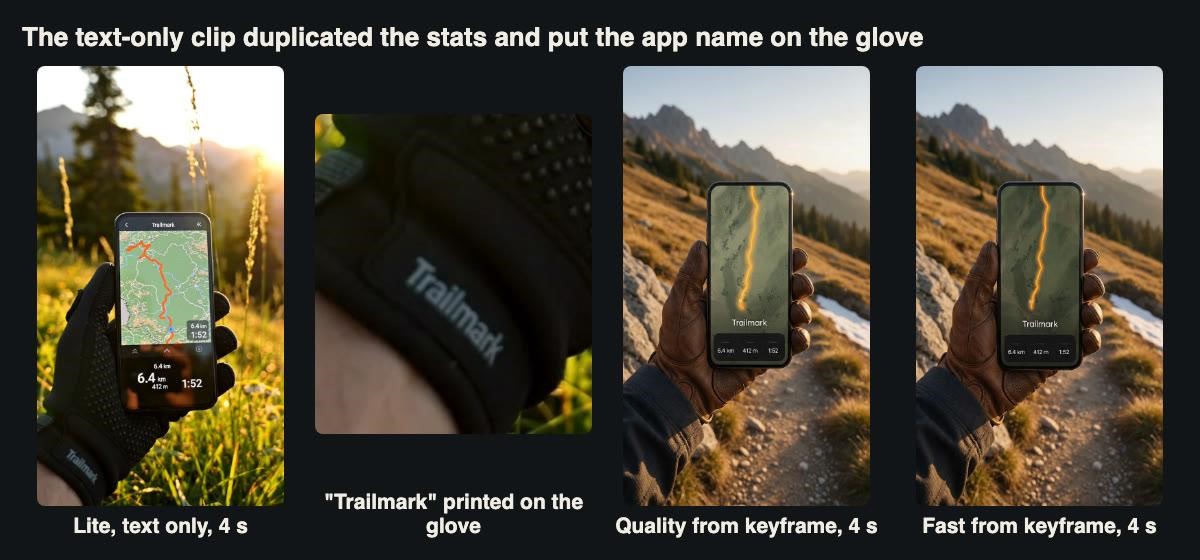
With the keyframe, the screen holds. From text alone, a different and busier app appears. The Lite clip put the app name on the glove. The keyframe-driven Quality and Fast clips kept the screen as designed.
For a store preview, a text-only clip shows an app that does not exist. It is fine for a mood board and wrong for a listing. Paying the extra six cents for Fast with a keyframe is the cheapest way to keep your real interface in the shot.
Test 4: Fast against Quality on the same keyframe
Quality costs $0.90 a clip, a little over seven times the Fast price, so we ran the identical request on veo3.1-quality. It took 102 seconds.
Both clips scored 24 out of 24 on every string. Side by side, we could not find a difference in the hand, the phone or the screen that would change a viewer’s understanding of the app. Both turned the route line into the same glowing stroke. The soundtracks differed more than the pictures. We measured the integrated loudness (EBU R128) at -33.9 LUFS for Quality and -41.7 LUFS for Fast, from the same prompt. Since the audio in a store preview is usually replaced or muted anyway, this matters less than it sounds.
For this kind of shot, a phone held fairly still with a screen that must not change, we found nothing that justified the Quality price. If you have money to spend, spend it on more Fast takes and choose the best one.
Test 5: a screen change with a first and a last frame
A preview usually needs to show the app doing something. We made a second still by editing the keyframe with the same image model, using the instruction “Keep the hand, glove, phone, mountains, trail and lighting exactly the same. Change only the phone screen to a hike summary screen: a large green check mark in a circle, the headline “Hike saved” in white, and below it “6.4 km 412 m 1:52″”. The edit took 75 seconds and cost $0.026. The hand, glove and background came back unchanged to the eye, and the new screen read correctly.
We then sent both stills to the Veo 3.1 API with veo3.1-fast as the model, the map as the first frame and the summary as the last, and asked for a thumb tap that changes the screen. The clip took 92 seconds and cost $0.126.
The model found its own way between the two screens. A thumb comes in and taps at about 2.6 seconds, and the screen then goes fully black for roughly a second before the summary fades up. The ending is accurate: “Hike saved” was read in the final 11 of 24 sampled frames, and the three stats in 18 to 20 of 24 frames overall. The black gap looks like the phone locking, not like an app responding to a tap.
The start and end match the stills exactly. The transition in the middle is the model’s own idea.
For a store preview we would use the first two seconds and the last three, and replace the middle with a real screen recording of the transition. That combination gives a real interface where it matters and a real-looking setting around it, which is the most honest result this workflow offers.
At this point the pattern was clear enough to state. Make every frame that shows the interface as a still you have approved, and let the video model handle only the hands, the light and the scenery. We generated the stills through the Seedream 5.0 Pro API and only the motion with Veo 3.1. The same pattern should work with any pair of models that support first-frame input.
Test 6: the app icon as a reference image
Many previews open or close on the app icon. We made a flat Trailmark icon (an orange mountain outline and a dotted white trail on a deep green rounded square) as a 1024 by 1024 still for $0.026, then tried Veo 3.1 Fast’s reference mode, which takes images as references rather than as fixed frames.
The first attempt failed. We asked for “a smartphone home screen held in a hand outdoors” with the Trailmark icon among other app icons and a thumb tapping it. After 202 seconds the task came back as rejected by the content safety review. It was not charged, and the error did not say what triggered it. We did not experiment to find out. We rewrote the request to show only the icon on a plain background, with the trail’s dots lighting up one by one, and that version completed in 71 seconds for $0.126.
The animation is pleasant but loose. The dots light up as asked, then carry on past the edge of the rounded square and off the icon altogether. The icon shrinks before it grows, where we had asked only for a slight scale-up. In the last frames a darker vertical band appears down the right of the background.
Reference mode kept the icon’s look but not its boundaries.
Icon animation is precise motion design, and a motion designer working from the icon’s vector file will do it better and more cheaply in time. The generated version is a useful sketch of an idea, not a finished asset.
Test 7: a 16:9 version
Some listings and most social posts want landscape video. We made a separate 16:9 keyframe with the phone lying on a granite rock beside a paper map and a steel bottle ($0.026, 90 seconds) and animated it with a slow push-in on Fast ($0.126, 91 seconds).
Two things went wrong. At about six seconds a hand enters from the top and lifts the water bottle out of frame. The prompt mentioned no hand and no bottle movement. The screen is also simply too small. At 720p, with the phone covering perhaps a fifth of the frame, the text recogniser read “6.4 km” in 22 of 24 frames, “412 m” in 17, “Trailmark” in one and “1:52” in none. Enlarged, the time smears into something closer to “1:32”, and the labels under the values are unreadable.
Small screens do not survive. Keep the phone large in the frame, or render at 1080p.
The size of the phone in the frame decided whether the text survived more than anything else in our tests. In the vertical shots the screen fills a third of the frame and the text held in every sampled frame. In the wide shot it did not.
Test 8: extending a clip to 15 seconds
Eight seconds is short for a preview. Veo 3.1 can extend a finished Fast or Quality clip to about 15 seconds through a separate remix call, which takes the original task ID and a new prompt. We extended the clip from Test 2 with “The gloved hand slowly lowers the phone out of frame and the camera continues forward along the rocky trail toward the sunlit mountains”. It took 111 seconds and cost $0.126.
The result was 14.9 seconds long. Comparing frames, the first eight seconds are the original clip, with SSIM scores of 0.99 against the source at 1, 4 and 7.5 seconds. After that, the phone drops away and the camera walks up the trail. The join is smooth, with no visible jump. The file was 16.1 MB, at a video bitrate of 8.5 Mbit/s against 2.4 for the original, so plan to re-encode it.
The extension continues the original clip rather than replacing it.
For a preview this is a useful ending. The interface sequence can come from the original eight seconds and the extension supplies an establishing shot, all from one keyframe.
Test 9: preparing the file for a store
Store requirements for preview videos change, and they differ between stores and device sizes. Check the current specification in your store’s developer console before you export, and do not rely on a number from an article, including this one. Three measurements from our clips will apply whatever the specification says.
- Re-encoding is cheap in quality terms. The first-and-last-frame clip, re-encoded without audio as H.264, came to 2.26 MB at CRF 18, 1.22 MB at CRF 23 and 0.50 MB at CRF 28. At CRF 28 the text recogniser read each stat in 10 of 12 sampled frames, against 10 or 11 for the original.
- Changing frame rate is not free. Veo 3.1 outputs 24 frames per second. Converting to 30 fps with ffmpeg produced 238 frames, and a duplicate-frame filter found only 189 of them unique. Roughly every fifth frame is a repeat, which can show as a slight judder on slow pans. If your target requires 30 fps, check pans and tilts after converting.
- The provenance label does not survive editing. The Seedream PNGs carry a C2PA manifest that marks them as AI-generated (“trainedAlgorithmicMedia”), and the Veo MP4s carry a C2PA manifest too. Our re-encoded files carried neither. If you want to tell viewers the scenery is generated, it has to be visible, in the video or on the listing.
What it cost
| Item | Count | Billed each | Total | Time |
| seedream-5-0-pro, 1K/1.5K (incl. one edit) | 4 | $0.026 | $0.105 | 45-90 s |
| seedream-5-0-pro, 2K | 1 | $0.053 | $0.053 | 71 s |
| veo3.1-lite, text only | 1 | $0.063 | $0.063 | 71 s |
| veo3.1-fast (first frame, two frames, reference, extend) | 5 | $0.126 | $0.630 | 71-111 s |
| veo3.1-fast, rejected by safety review | 1 | $0 | $0 | 202 s |
| veo3.1-quality | 1 | $0.90 | $0.900 | 102 s |
| Total | 13 | $1.75 |
These are the amounts billed to our account. Rates depend on account tier, so check current pricing before you budget. Leave out the Quality comparison and the rejected attempt, and the set of clips a preview would actually use came to about $0.85. That covers keyframes, a screen change, an icon sting and a 15-second extension.
Narrated walkthrough of the nine tests with the generated clips. All imagery is AI-generated.
A checklist for generated app previews
- Put every interface frame into a still you approved. From text alone, the model built a different app and printed the name on a glove.
- Read every frame with a text recogniser, and look as well. The text-only clip passed the string check and was still wrong.
- Keep the screen out of the motion prompt. Asking the route to “pulse” changed how the interface looked.
- Keep the phone large in the frame. At a fifth of the frame width, “1:52” smeared and the labels were lost.
- Use two frames for a screen change, and replace the middle with a real recording. The model’s own transition was a black screen.
- Do not pay for Quality on static screen shots. It matched Fast on every string at about seven times the price.
- Expect an occasional safety rejection and keep prompts simple. Our home-screen request was refused after more than three minutes, without being charged.
- Re-encode and recheck before you upload. Watch the frame rate, re-read the text, and add a visible note if the scenery is generated.
The bottom line
An app preview made this way is a real phone screen placed into generated surroundings. When the screen comes from a keyframe you control and stays large in the frame, Veo 3.1 Fast kept it legible and unchanged in every sampled frame, for about thirteen cents a clip. When the screen came from a description, was small in the frame, or was asked to animate itself, the model filled the gaps with interface and copy that nobody designed. Treat the model as a camera crew and location, not as a designer, and your listing will show the app you actually built.